
When to use it
Once a month, in the week after the business meeting. Two-thirds of a typical council newsletter is information DuesSync already keeps — who the officers are, whose birthday falls this month, what was decided at the last meeting, what is on the calendar — so the Recorder writes the Grand Knight's message and a few articles instead of retyping the directory every month. Every issue keeps the same skeleton, so members learn where to look.
Step by step
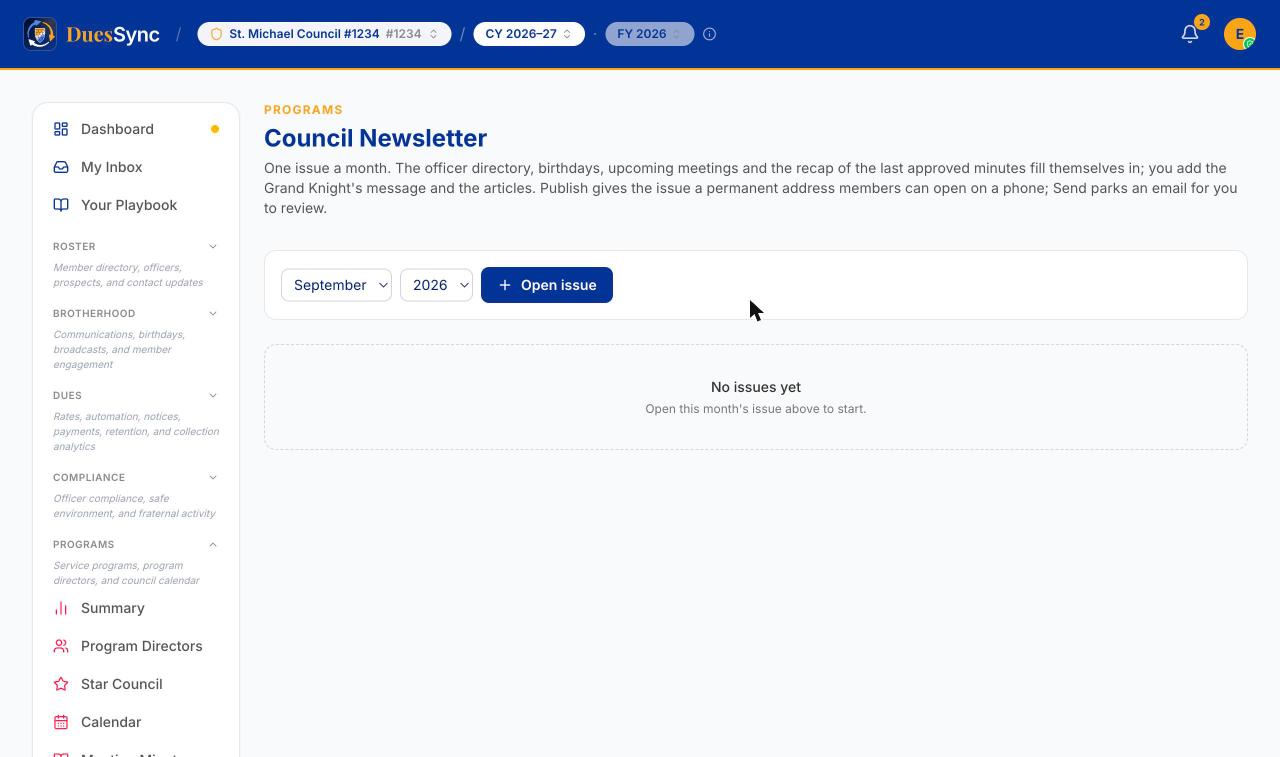
- Open Programs → Newsletter. Pick the month and year (it defaults to the current month) and click Open issue. Opening a month that already exists simply takes you back to it — there is exactly one issue per month.
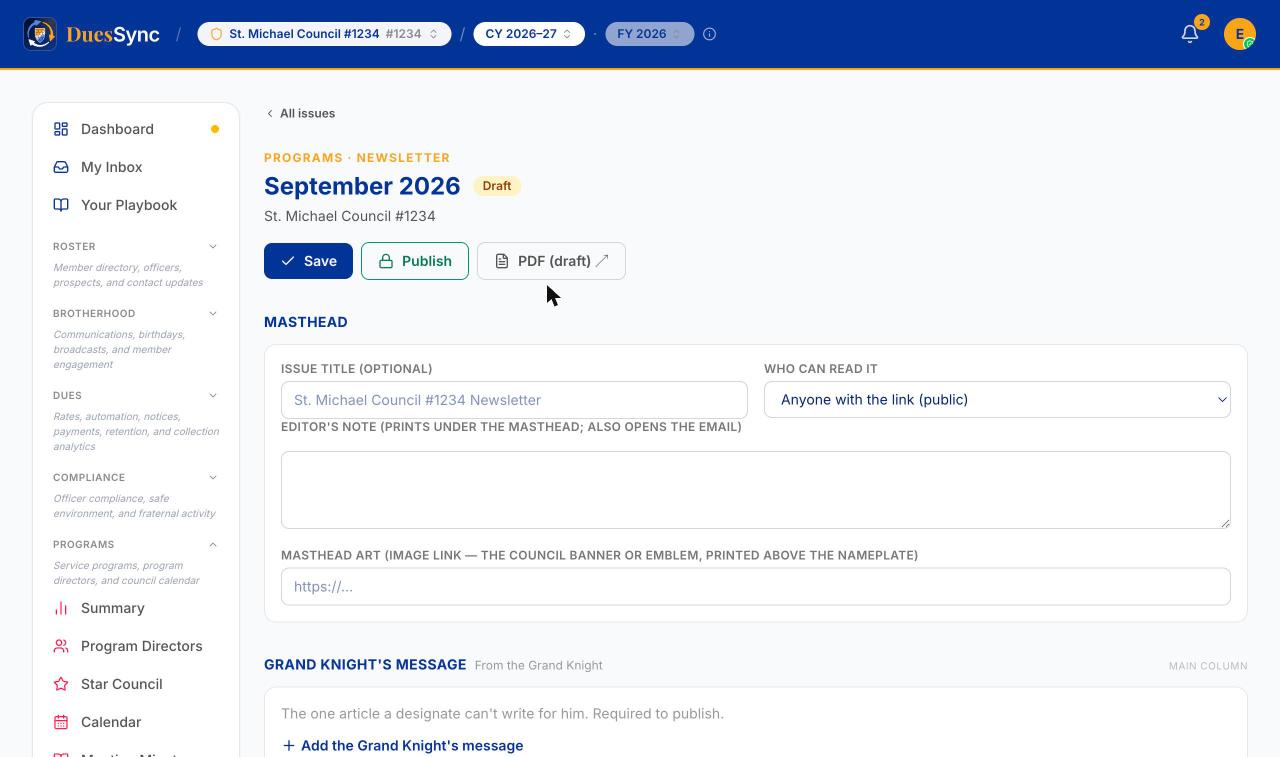
- Fill in the Masthead. The issue title is optional (it defaults to "Council name Newsletter"). Who can read it decides the web address: Anyone with the link (public) lists the issue in the council's public archive and lets search engines find it; Members with the link keeps it unlisted. The Editor's note prints under the masthead and becomes the opening line of the email. Click Save.
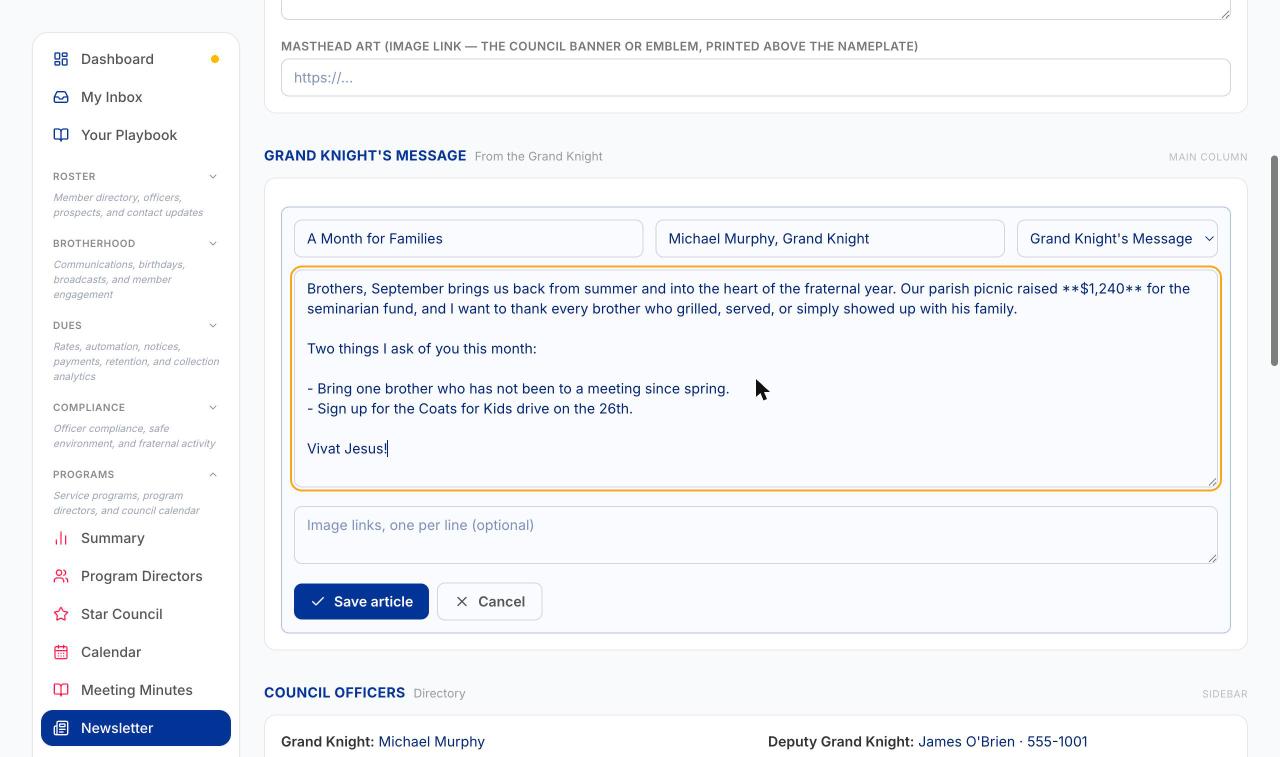
- Add the Grand Knight's Message. Click Add the Grand Knight's message, give it a title and a byline, and write the body. Plain text works; a blank line starts a new paragraph,
**bold**makes bold, and lines starting with-make a list. Click Save article. This is the one article the issue cannot be published without.
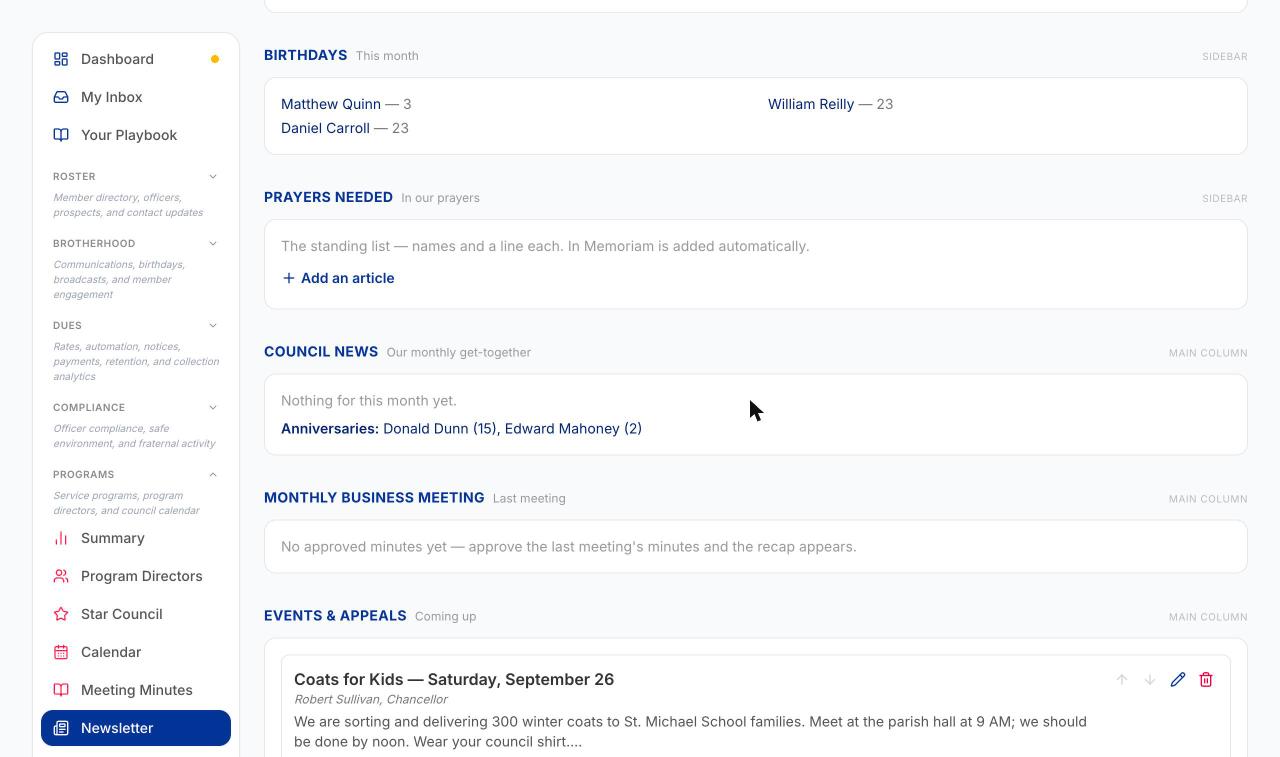
- Check the sections that filled themselves in — Council Officers, Birthdays, Council News (upcoming meetings and events, plus membership anniversaries and new members) and Monthly Business Meeting (the recap of the last approved minutes). You do not edit these here: to change them, change the source — the officer roster, the member record, the calendar, or the minutes.
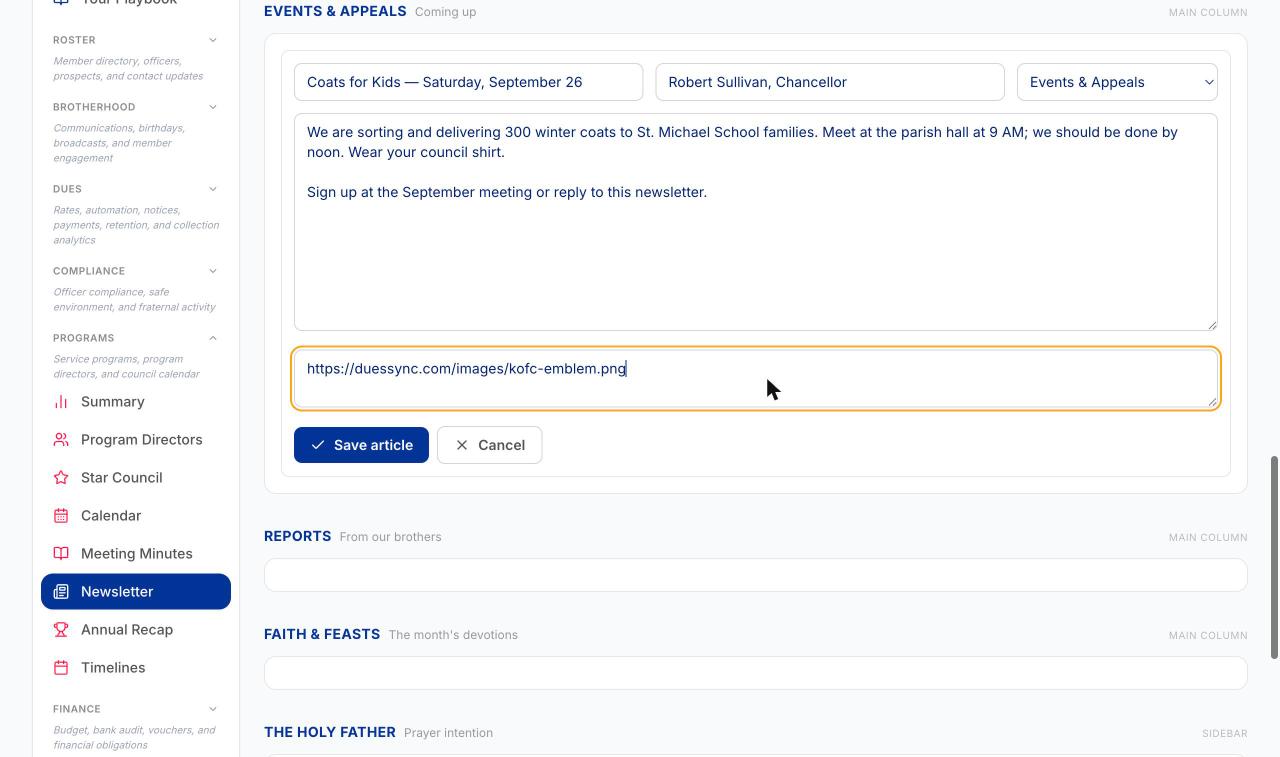
- Add the rest of the articles with Add an article under each section — Prayers Needed, Events & Appeals, Reports, Faith & Feasts, The Holy Father, Community. To include a photo, paste its web link in Image links, one per line. The link must start with
https://. Use the pencil to edit an article, the arrows to reorder within a section, and the red bin to remove it.
Check the layout before it goes out: Preview layout ↗ shows the draft exactly as members will see it, and PDF (draft) ↗ produces the print version. Neither is visible to anyone else yet.
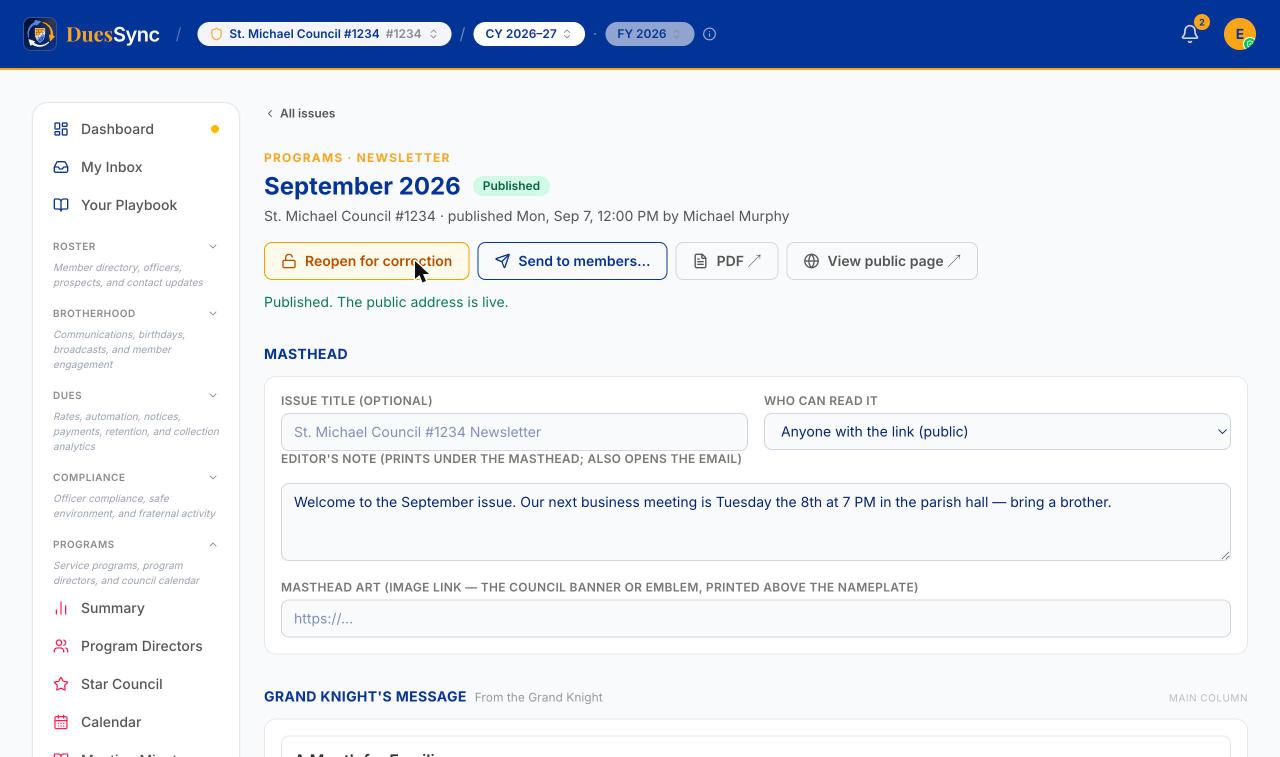
Click Publish. The issue is now live at its own address (View public page ↗), the PDF is final, and the button bar changes to Reopen for correction and Send to members…. Publishing takes a snapshot of the auto sections, so the September issue does not change when October's roster does.
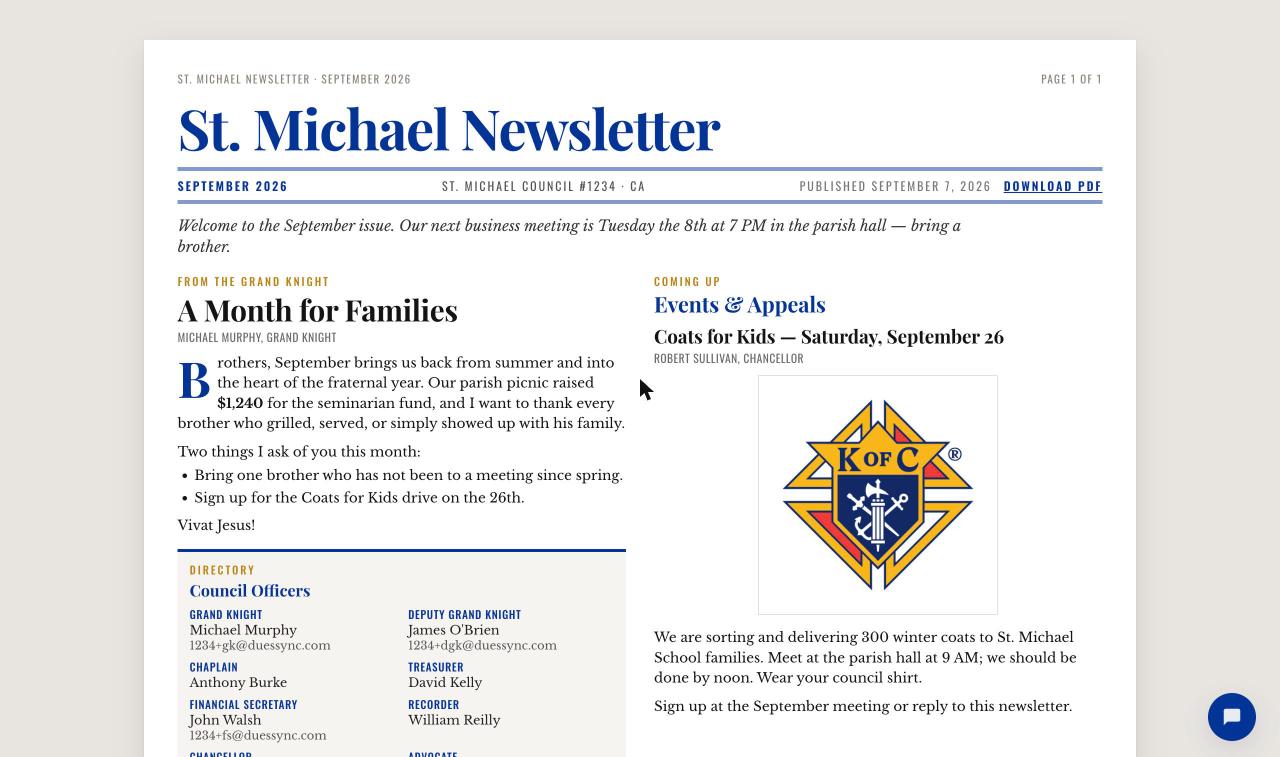
- Open View public page ↗ once to check it on a phone. Members get the same page: two newspaper columns on a desktop, one readable column on a phone, and a Download PDF link at the top for anyone who wants to print it.
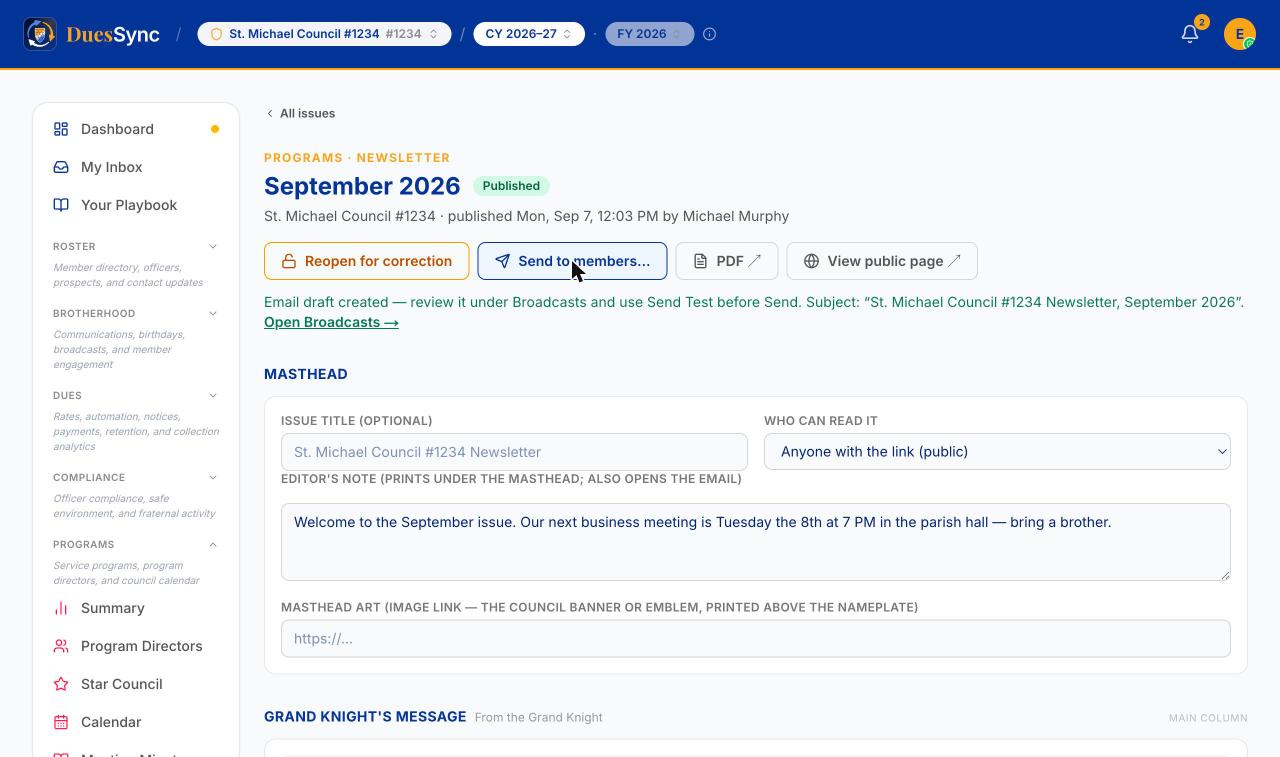
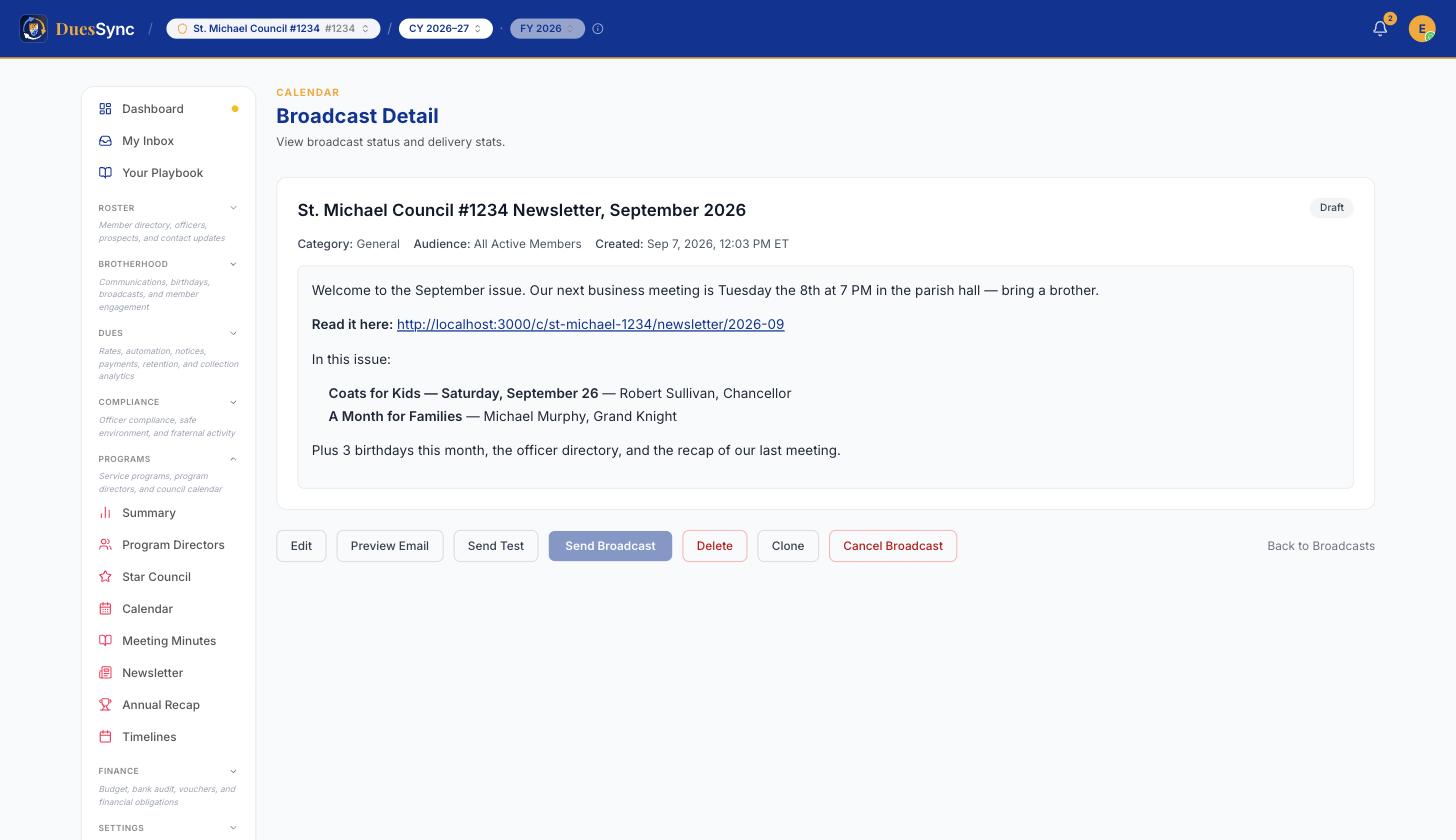
- Click Send to members…. DuesSync writes an email draft — your editor's note, the link to the issue, and a list of the articles — and parks it under Broadcasts. Nothing has been sent yet. Click Open Broadcasts →.
- In Broadcasts, open the draft, click Send Test to receive it yourself, read it on your phone, then click Send Broadcast. It goes to every active member with an email address, honouring each member's email preferences, exactly like any other council broadcast. Send Broadcast stays greyed out until you have sent yourself a test.
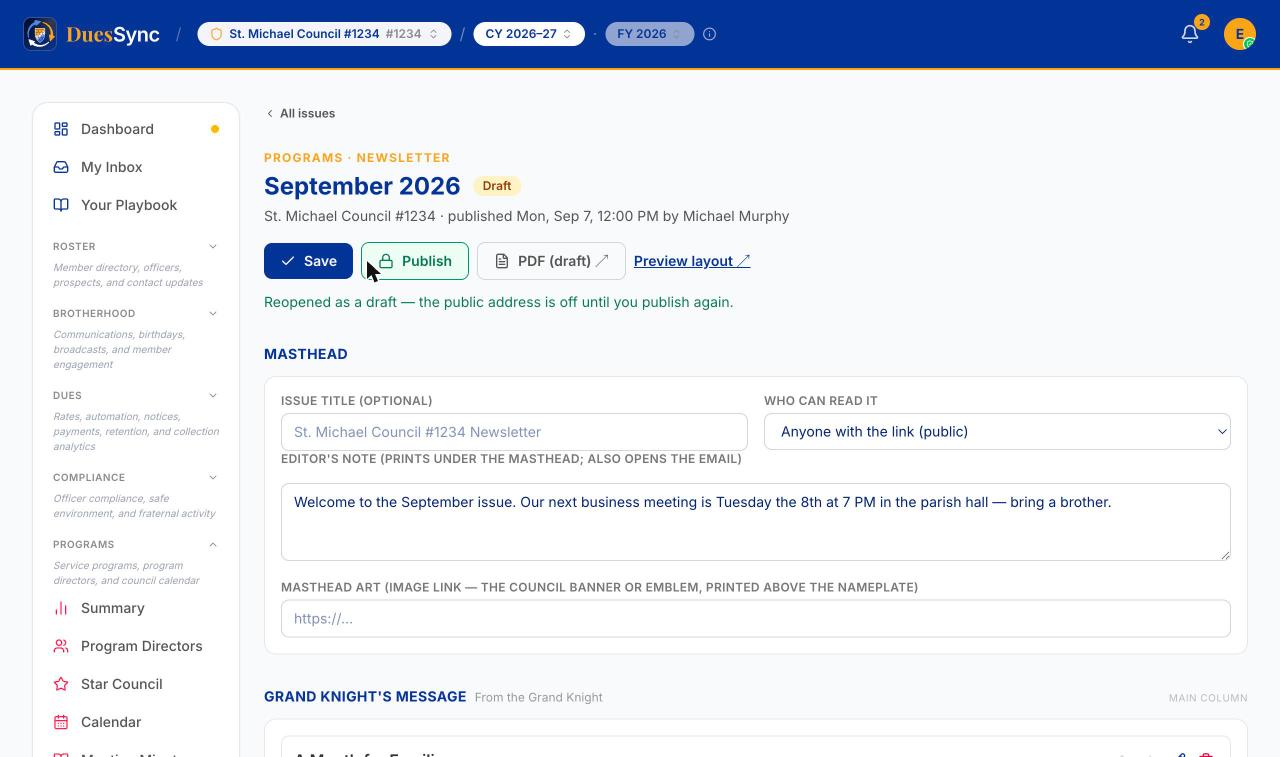
- Spotted a typo after publishing? Click Reopen for correction. The public address is switched off, the issue goes back to Draft, you fix it, and you click Publish again. A correction is a re-publish, not an edit in place, so members never see two versions of the same issue.
Tips & gotchas
- The Grand Knight's message is required. Publish refuses without it. If the Grand Knight sends you a paragraph by text, paste it in with his name as the byline.
- Only approved minutes appear in the recap. If the Monthly Business Meeting section says "No approved minutes yet", approve last meeting's minutes under Programs → Meeting Minutes and the recap appears.
- Image links must start with
https://. A link that does not is silently dropped when the article is saved. Photo uploads from your computer are not available yet — use a link to a photo already on the web (your parish site, a shared album, or the council's own site). - Birthdays and anniversaries are for the month of the issue, and upcoming events look ahead from that month, so a September issue opened in late August still shows September's birthdays.
- Publishing is a snapshot. If an officer changes after you publish, the issue keeps the roster it was published with. Reopen and re-publish if you want the new slate in.
- Send to members creates a draft only — and it is available to broadcast-capable officers (Financial Secretary, Grand Knight, Deputy Grand Knight). A Recorder without those rights can still publish and share the public link or the PDF.
- No phone numbers, on any surface. The officer directory prints names, and on published issues a contact address for the council that reaches the Financial Secretary, Grand Knight and Deputy Grand Knight, never a personal phone number. Put a phone number in an article only if the officer wants it public.
- The PDF is A4 and prints cleanly on US Letter with the printer dialog's default "fit to page".
- All issues, at the bottom of any public issue, lists every public issue the council has published. Members-only issues are reachable only by their link.
Related
- See also meeting-minutes
- See also council-bulletin
- See also broadcast
- See also calendar